
Japan eSIM
Questions, Answered
Search 37 answers about setup, data, coverage, payment and troubleshooting —
or browse by topic below.
Most asked
Getting Started
What is an eSIM, and how is it different from a SIM card?
An eSIM is a digital SIM that is already built into your phone. Instead of swapping a plastic card, you scan a QR code and a Japanese data plan is added to your device.
- Nothing is shipped to you — your eSIM arrives by email, usually within about 15 minutes.
- Your usual SIM stays in your phone, so you keep your normal number for calls and texts.
- You can install it at home before you fly, and simply switch it on when you land in Japan.
When will I receive my QR code?
Your eSIM QR code is usually sent by email within about 15 minutes of purchase, to the email address you used at checkout. The email also includes the APN settings you need after installing.
If it has not arrived, please check your spam and promotions folders. Your QR code is also available in your account at any time.
Orders placed during scheduled maintenance (Tuesday 10:00 PM to Wednesday 9:00 AM JST) will be processed after maintenance ends.If it still has not arrived 1 hour after your purchase (outside the Tuesday-night maintenance window), contact us at support@japan-on-line-esim.com with your order number and we will sort it out.
Should I buy my eSIM before I fly, or can I buy it in Japan?
We recommend buying and installing before you leave home, while you have reliable Wi-Fi. That way your phone is ready the moment you land.
You can also buy after you arrive — you just need a Wi-Fi connection (airport, hotel or café) to receive the email and install the eSIM.
Do I have to choose a start date when I buy?
Yes. At checkout you choose the date you plan to start using your data — normally your arrival day in Japan. You can pick any date from today up to day 44 after your purchase.
The date you choose is a plan for us, not a switch: your days actually start counting the first time your eSIM connects to the network in Japan.
If you have not started using the eSIM by then, your plan starts automatically on day 45 after purchase, whether you are in Japan or not. Please buy within about six weeks of your trip.What should I do with my eSIM after my trip to Japan?
Nothing is required — there is nothing to post back and no contract to cancel. Once your validity period ends, the data service simply stops.
If you no longer need it, you can remove the eSIM profile from your phone: iPhone → Settings → Cellular → select the plan → Delete eSIM. Android → Settings → Network & internet → SIMs → select the plan → Delete.
Device Compatibility
How can I check if my device supports eSIM?
Most phones released in the last few years support eSIM, but it varies by model and by the country where the phone was sold.
- iPhone: Settings → Cellular → look for “Add eSIM” or “Add Cellular Plan”.
- Samsung: Settings → Connections → SIM manager.
- Pixel / other Android: Settings → Network & internet → SIMs.
You can also look your model up in our eSIM compatibility list.
Do I need to unlock my phone to use the JAPAN-ON-LINE eSIM?
Yes. An unlocked (SIM-free) phone that supports eSIM is required. Phones bought on a carrier contract are often locked to that carrier.
If your device is locked, contact your home carrier and ask them to unlock it before your trip — it is usually free and can take a day or two, so do not leave it to the last minute.
My iPhone was bought in mainland China, Hong Kong or Macau. Will it work?
Unfortunately, iPhones sold in mainland China, Hong Kong and Macau generally do not support eSIM. The known exceptions are the iPhone 13 mini, iPhone 12 mini, iPhone SE (2020) and iPhone XS.
Please check Settings → Cellular for an “Add eSIM” option before you buy. If it is not there, your phone cannot use an eSIM.
Can I move my eSIM to another phone?
No. Once your eSIM has been installed on a device it is tied to that device and cannot be transferred to another phone.
You can reinstall it on the same phone if you delete it by mistake — the QR code stays available in your account.
Travelling with family? Each phone needs its own eSIM, so please buy one per device.Setup & Activation
How do I install my eSIM?
Install the eSIM before your trip, while you are connected to Wi-Fi. Choose your phone below.
Before you start, connect your phone to Wi-Fi and make sure Airplane / Flight Mode is switched off.If an eSIM from another provider is already installed on your phone, you may need to switch it off before you install ours. After installing, check the SIM settings on your phone and make sure the JAPAN-ON-LINE eSIM is selected as the line for mobile (cellular) data.
iPhone
Install with the QR code (iOS 17 and later)
- On some versions of iOS 17, you can long-press the QR code and choose the option to add the eSIM. If you do not see this option, go to the next step.
- Save the QR code to the Photos app: open the image or long-press it, then tap “Save Image” or “Save to Photos”. You can also take a screenshot of the QR code and crop it.
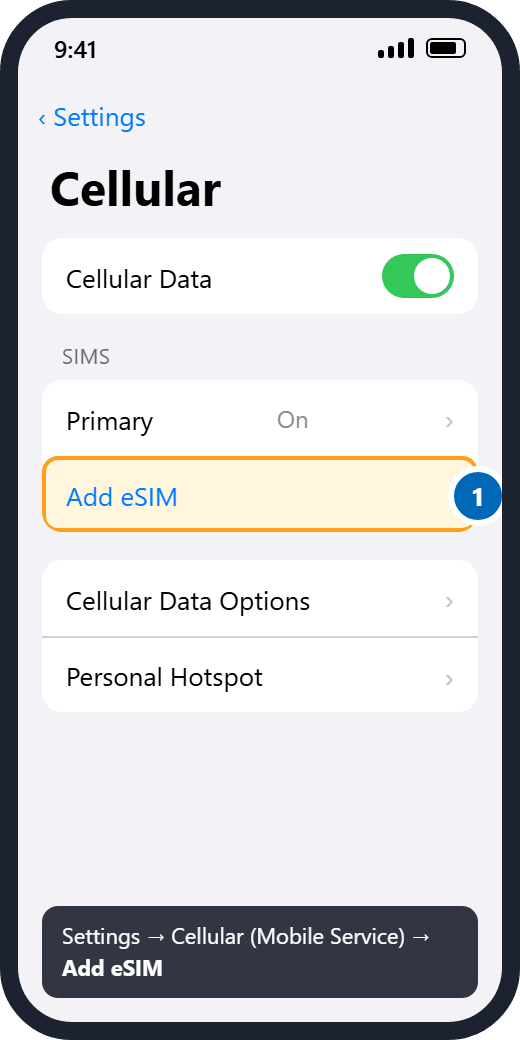
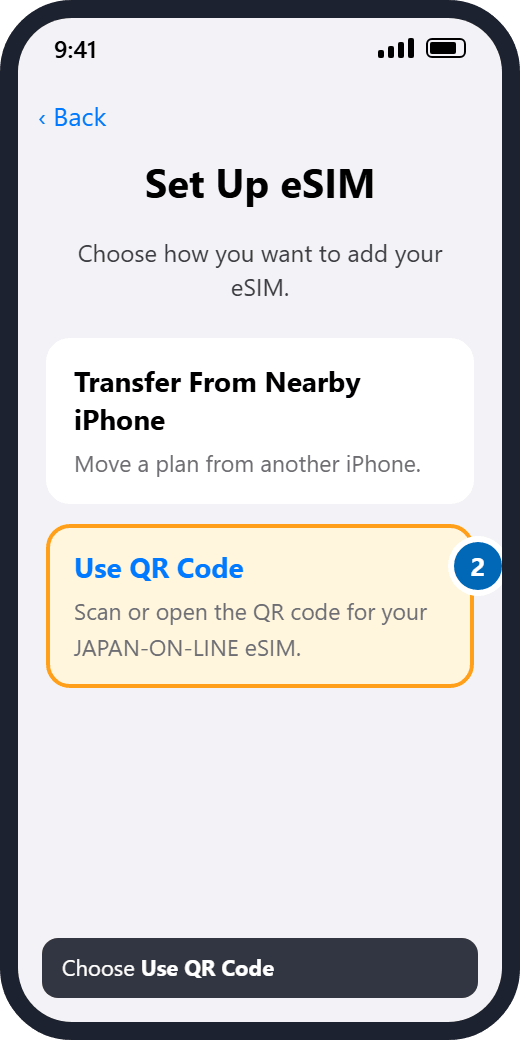
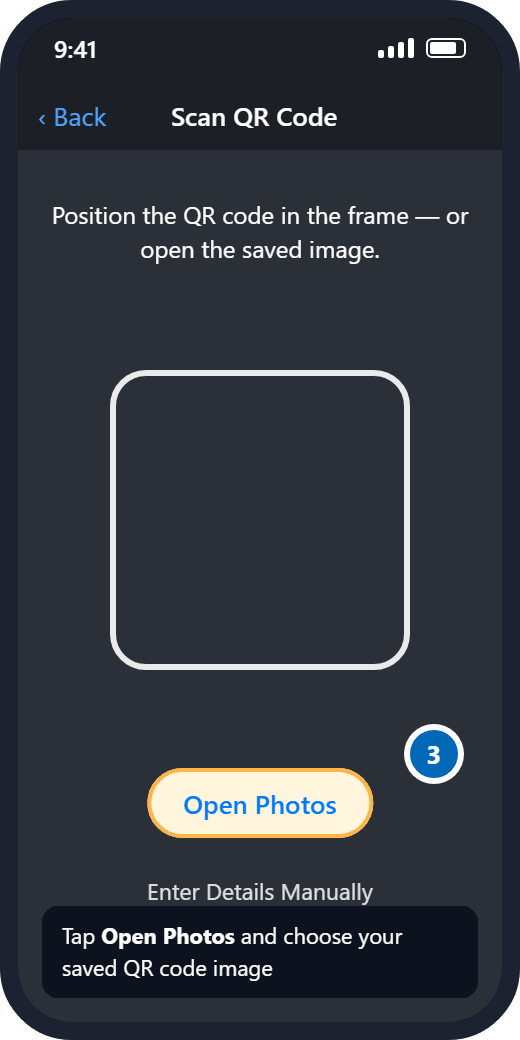
- Go to Settings → Cellular → Add eSIM → Use QR Code → Open Photos.
- Select the QR code image. It is scanned straight away — follow the prompts to finish the installation.
On the screen, step 3 looks like this:
Illustrations — menu names and screens vary by phone model and OS version.
You can also open your account on the iPhone, tap “Show QR Code” and then tap the QR code to start the installation directly.
During setup you may be asked to choose a label — any label is fine. You may also be asked to choose your default line for:
- Voice: choose your other line. The JAPAN-ON-LINE eSIM is data-only, so it cannot be used for calls.
- Data: choose the JAPAN-ON-LINE eSIM.
- iMessage: keep your current option (your home number or Apple ID).
After installing — no APN setting needed
On an iPhone you do not need to change the APN to use mobile data. You only need to enter it if you want to share your connection with Personal Hotspot (tethering) — the steps, with pictures, are in “Can I use tethering or a personal hotspot?”.
Android
Install with the QR code
- Samsung (most models): Settings → Connections → SIM card manager → Add mobile plan → Add using QR code / Scan Carrier Code.
- Google Pixel (most models): Settings → Network & internet → + (plus) → Download a new eSIM.
Then follow the prompts to finish. If these menus look different on your phone, please check the user manual for your model.
Install manually with the activation code
If the QR code does not work, you can enter the activation code instead. Sign in to your account, open your eSIM, tap “Show QR Code” and copy the whole Activation Code — it starts with 1$.
- Samsung: Settings → Connections → SIM card manager → Add mobile plan → Add using QR code / Scan Carrier Code, then tap “Enter the code instead” and paste the activation code.
- Google Pixel: Settings → Network & internet → + (plus) → Download a new eSIM → Need help? → Enter it manually, then paste the activation code and tap Continue.
Then follow the prompts to finish. If these menus look different on your phone, please check the user manual for your model.
After installing — set up the APN
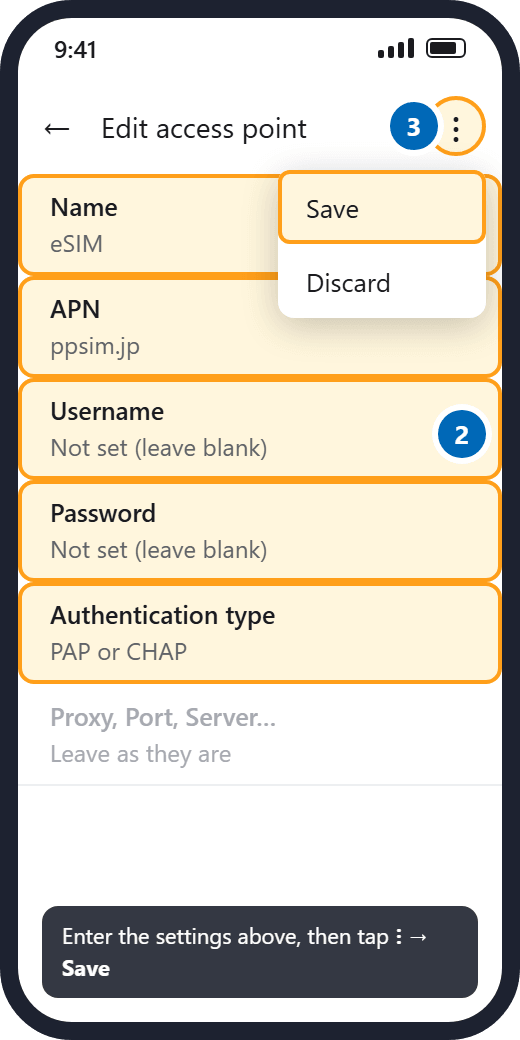
Create an APN (Access Point Name) profile using exactly these settings:
- Name: eSIM (any name is fine)
- APN:
ppsim.jp - Username: leave blank
- Password: leave blank
- Authentication type: PAP or CHAP
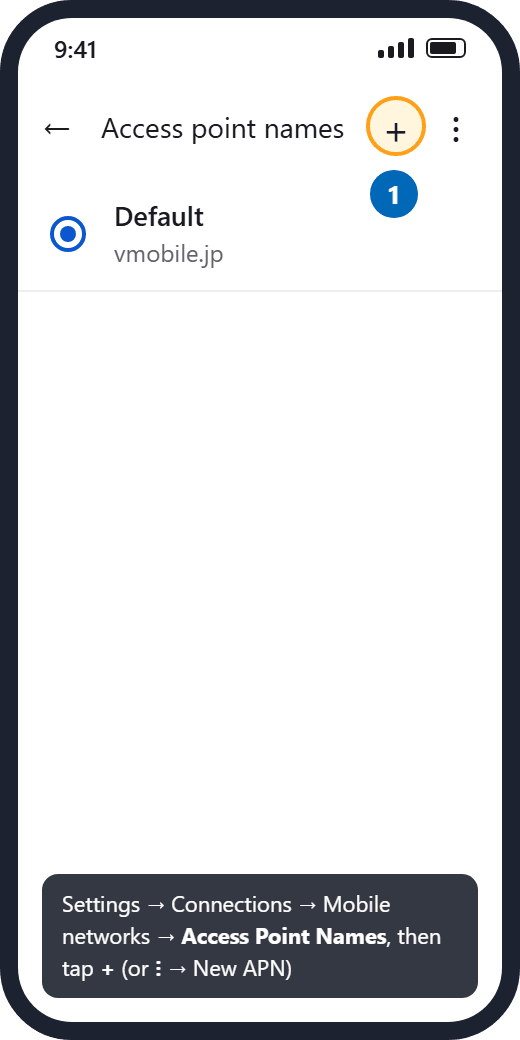
- Go to Settings → Connections → Mobile networks → Access Point Names, or Settings → Network & internet → Mobile network → Access Point Names (on some phones, under “Advanced”).
- Tap “+” or “Add” — or the ⋮ (three dots) menu — to create a new profile.
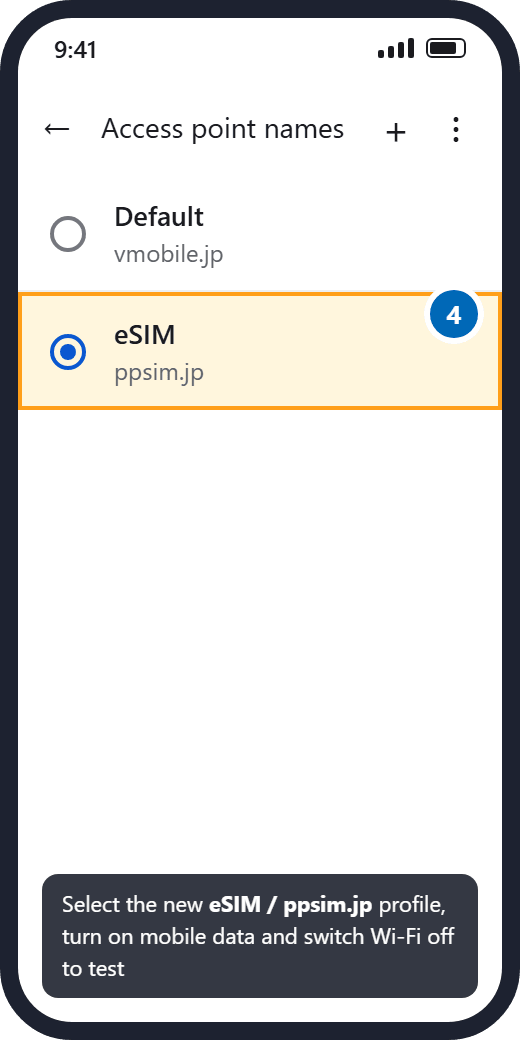
- Enter the settings above, save the profile and make sure it is selected as the active profile.
On the screen it looks like this:
Illustrations — menu names and screens vary by phone model and OS version.
To test, switch Wi-Fi off and turn mobile data on. If it does not connect, restart your phone and test again. The eSIM only connects once you are in Japan.
When should I install the eSIM — before or after I arrive?
Install it before you fly, while you have a stable Wi-Fi connection. Installing needs internet; connecting to the Japanese network does not happen until you land.
Installing early does not start your plan. Your days only begin once the eSIM goes online in Japan, so there is no reason to wait.
Until you arrive, the line may show “Activating”, “No service” or “Searching”. That is completely normal and does not mean anything is wrong.
Which APN settings do I need?
These are the APN (Access Point Name) settings for your JAPAN-ON-LINE eSIM:
- Name: eSIM (any name is fine)
- APN:
ppsim.jp - Username: leave blank
- Password: leave blank
- Authentication type: PAP or CHAP
Android: set these up after installing — mobile data will not work until you do. iPhone: you do not need to change anything to use mobile data. Enter the APN only if you want to use Personal Hotspot (tethering).
iPhone
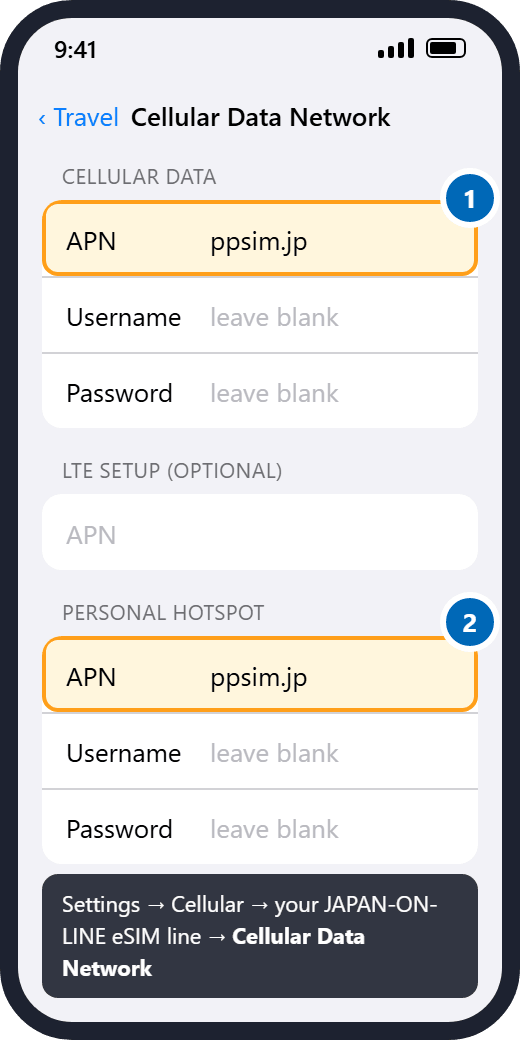
Only needed for Personal Hotspot. Go to Settings → Cellular → tap the JAPAN-ON-LINE eSIM line → Cellular Data Network (on some iPhones: Settings → Cellular → Cellular Data Options → Cellular Data Network). Enter the APN in the “Personal Hotspot” section and in the “Cellular Data” section, and leave the username and password blank. The full steps, with pictures, are in “Can I use tethering or a personal hotspot?”.
Illustrations — menu names and screens vary by phone model and OS version.
Android
- Go to Settings → Connections → Mobile networks → Access Point Names, or Settings → Network & internet → Mobile network → Access Point Names (on some phones, under “Advanced”).
- Tap “+” or “Add” — or the ⋮ (three dots) menu — to create a new profile.
- Enter the settings above, save the profile and make sure it is selected as the active profile.
On the screen it looks like this:
Illustrations — menu names and screens vary by phone model and OS version.
To test, switch Wi-Fi off and turn mobile data on. If it does not connect, restart your phone and test again.
What do I need to do when I land in Japan?
Once you have landed and switched off airplane mode:
- Turn your JAPAN-ON-LINE line on, and set it as your mobile data line.
- Android: check the APN is ppsim.jp with a blank username and password. On an iPhone, there is nothing to change.
You do not need to turn on Data Roaming — this is a Japanese eSIM, so it is not roaming in Japan.
If you are still not connected after a minute or two, restart your phone — that resolves most first-connection problems.
Can I reinstall my eSIM if I delete it by accident?
Yes. Sign in to your account, open the eSIM and tap “Show QR code” to install it again on the same phone. You can also have the eSIM email sent again from there.
Reinstalling works on the same device only — an eSIM cannot be moved to a different phone.Plans & Data
How long does my JAPAN-ON-LINE eSIM plan last?
Plans run from 8 to 31 days depending on the one you choose — the exact length is shown on every plan before you buy.
Your days start counting the first time your eSIM connects to the Japanese network, which is normally the moment you land and switch the line on. Buying early or installing early does not use up any of your days.
- The day you first go online counts as day 1.
- Days are whole calendar days, so an 8-day plan ends at the end of your 8th day.
Which plan should I choose?
First choose a validity period that covers your whole trip, then the data allowance:
- 30GB — maps, messaging, email, social media and occasional streaming.
- 50GB — the same, plus regular video calls, music streaming and light hotspot use.
- 100GB — heavy video, remote work, or sharing your connection with a travel companion.
As a rough guide, maps and messaging use well under 1GB a day, while streaming video can use several GB an hour.
What happens if I use up all my data?
Your connection does not stop. Once the high-speed allowance is used up, speeds are reduced to a maximum of 200kbps and you can keep using the eSIM until the end of your validity period.
At 200kbps, messaging and simple maps still work, but video and large downloads will be slow. There are no daily data limits, so you can use your allowance at whatever pace suits your trip.
If you need full speed again before your trip ends, you can buy another eSIM at any time.
How do I check how much data I have left?
Sign in to your account and open your eSIM. You will see how much data you have used, how much is left, and a day-by-day breakdown of the last 7 days. Usage figures refresh regularly rather than instantly, so allow a short delay after heavy use.
We also email you automatically when you reach 80% of your allowance, and again shortly before your plan expires.
Can I use tethering or a personal hotspot?
Yes. Tethering and personal hotspot are supported on all of our plans, so you can share your connection with a laptop, tablet or travel companion. Data used by connected devices comes out of your plan allowance.
iPhone
To use Personal Hotspot on an iPhone, enter the APN once first. (You do not need this just to use mobile data on the iPhone itself.)
- APN:
ppsim.jp - Username: leave blank
- Password: leave blank
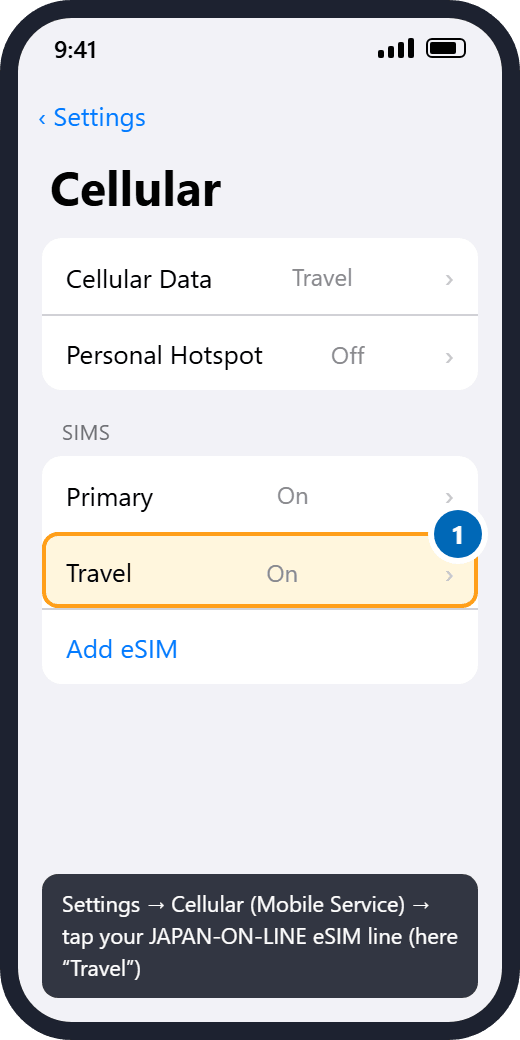
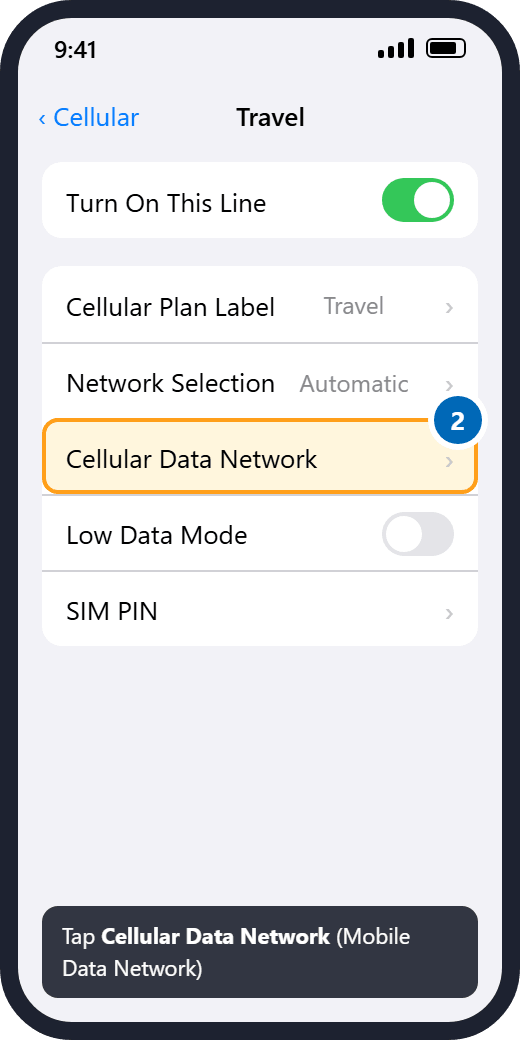
- Open Settings → Cellular (on some iPhones: Mobile Data or Mobile Service) and tap your JAPAN-ON-LINE eSIM line under “SIMs”.
- Tap Cellular Data Network (Mobile Data Network).
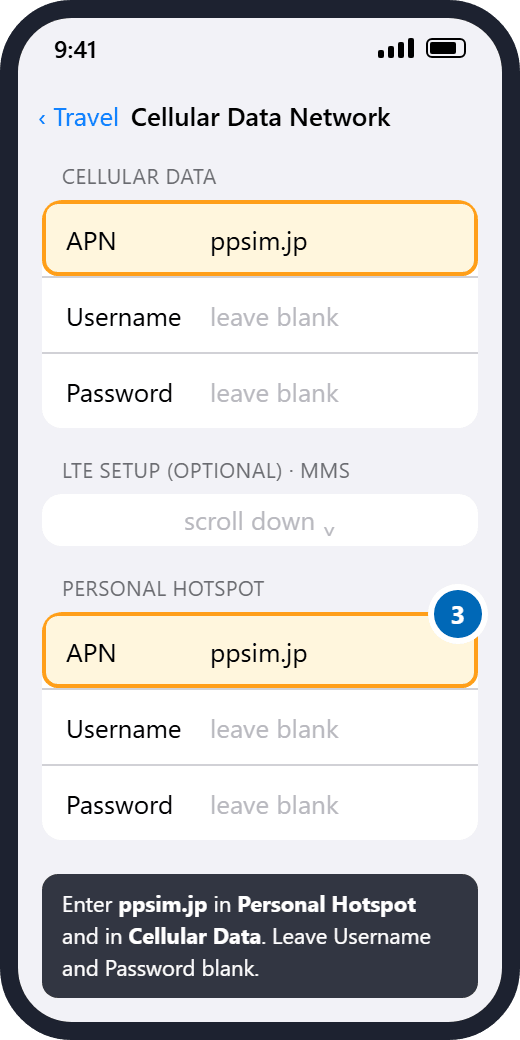
- Scroll down to the “Personal Hotspot” section and enter ppsim.jp as the APN. Enter the same APN in the “Cellular Data” section at the top. Leave Username and Password blank — if “vmobile.jp” or a username or password is already filled in, replace or delete it. Your settings are saved when you go back.
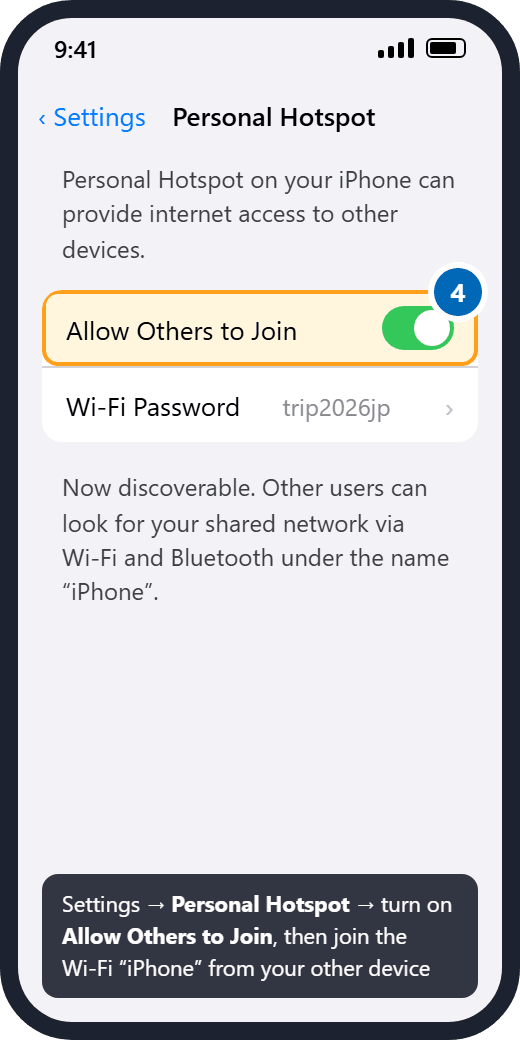
- Go to Settings → Personal Hotspot and switch on “Allow Others to Join”. The Wi-Fi Password is shown on the same screen.
- On your other device, connect to the Wi-Fi network with your iPhone’s name and enter that password.
On the screen it looks like this:
Illustrations — menu names and screens vary by phone model and OS version.
If Personal Hotspot is missing or greyed out, finish step 3 and then restart your iPhone. Personal Hotspot shares the line used for cellular data, so make sure your JAPAN-ON-LINE line is selected in Settings → Cellular → Cellular Data.Android
On Android, the hotspot uses the APN you set up after installing (ppsim.jp — see “Which APN settings do I need?”). Then turn it on:
- Samsung (most models): Settings → Connections → Mobile Hotspot and Tethering → Mobile Hotspot.
- Google Pixel (most models): Settings → Network & internet → Hotspot & tethering → Wi-Fi hotspot.
Menu names vary by model. If the hotspot does not connect, check that the ppsim.jp APN profile is selected, then restart your phone.
What happens when my plan expires?
At the end of the final day of your validity period the data service stops. There is no automatic renewal and no further charge — one-off eSIM plans never renew by themselves.
If you are still in Japan and need to stay connected, simply buy another eSIM. Once you are home, you can delete the expired profile from your phone.
Coverage & Network
Which network will my phone connect to in Japan?
Your eSIM connects to the NTT Docomo network, one of Japan’s largest and most established mobile networks. Your phone selects it automatically — there is nothing to choose manually.
Is 5G included?
Yes. 5G, 4G and LTE connectivity are included at no extra cost in areas where they are available, and your phone switches between them automatically.
Actual speeds vary with your location, your device and how busy the network is.
Will I have coverage outside the big cities?
Yes. Coverage extends across Japan, including many rural and mountain destinations as well as the major cities and the Shinkansen routes between them.
As with any mobile network, signal can be limited in remote mountain areas, deep valleys, some tunnels and on parts of outlying islands.
Can I make phone calls or send text messages?
Our eSIMs are data plans, so they do not include a Japanese phone number for regular calls or SMS. Apps such as LINE, WhatsApp, Messenger and FaceTime work normally over the data connection.
Your own number stays on your usual SIM. If you leave that SIM switched on to receive calls or texts, your home carrier may charge you roaming fees — those charges come from your carrier, not from us.
Payment & Billing
Which payment methods do you accept?
We accept Visa, Mastercard, JCB, American Express and Diners Club credit and debit cards. The brands available to you are always shown on the checkout page.
Payments are processed by our payment provider using 3-D Secure verification, so your bank may ask you to confirm the payment. We never see or store your full card number.
Which currency am I charged in?
All payments are charged in Japanese yen (JPY), tax included. Prices shown in US dollars or euros are approximate conversions to help you compare.
The amount on your statement is converted by your card issuer at their own rate, so it may differ slightly from the estimate shown on our site.
What is your refund policy?
Because an eSIM is delivered digitally and cannot be resold once issued, we are unable to offer refunds for change of mind or for unused plans.
If your eSIM does not work, please contact support@japan-on-line-esim.com within 7 days of receiving your QR code. If the problem is on our side, we will reissue your eSIM or refund you in full.
Refunds are not available for issues relating to network speed or performance, which depend on location and network conditions.Can I get a receipt or invoice?
Yes. Sign in to your account, open the order and download the receipt. It shows the amount, the consumption tax and our company details, so it can be used for expense claims.
If you need different details on the receipt, email support@japan-on-line-esim.com with your order number.
Troubleshooting
I haven’t received my eSIM email. What should I do?
Work through these in order:
- Check your spam, junk and promotions folders, and search for “JAPAN-ON-LINE”.
- Make sure the email address you typed at checkout is correct.
- Sign in to your account — your QR code is available there even if the email has not arrived, and you can resend the email from the same screen.
If your eSIM is still not there 1 hour after purchase (outside the Tuesday-night maintenance window), email support@japan-on-line-esim.com with your order number.
My eSIM is not connecting. What should I check?
Work through these checks in order:
- Are you in Japan yet? The eSIM only connects once you arrive.
- Your phone must support eSIM and be unlocked (SIM-free).
- The JAPAN-ON-LINE eSIM must be selected as your mobile data line — check it is not still set to your home SIM.
- Android: check the APN. Create an APN profile with APN
ppsim.jp, a blank username and password, and authentication type PAP or CHAP, and select it. If your phone filled in “vmobile.jp” automatically, replace it with ppsim.jp. On an iPhone, you do not need to change the APN to use mobile data. - Switch Wi-Fi off while you test, so that you are really using mobile data.
Then restart your phone and check whether the connection works. If you are still offline after the restart, contact support@japan-on-line-esim.com and tell us which of these you have already checked.
My phone is stuck on “Activating”. Is something wrong?
This is normal before your trip. Until your phone can see the Japanese network, the line may show “Activating”, “Searching” or “No service”. It will connect after you land and switch off airplane mode.
If it still shows that message after you have arrived in Japan, restart your phone, then check that this line is selected for mobile data. On Android, also check that the APN is ppsim.jp.
My QR code won’t scan or my activation code isn’t accepted.
A phone cannot scan a QR code shown on its own screen, so display it on a computer, a second phone or a printout.
- Increase the brightness and hold the camera 15–20cm away.
- Only have one phone? On an iPhone, open your account and tap the QR code to install directly, or save the QR code to Photos and go to Settings → Cellular → Add eSIM → Use QR Code → Open Photos.
- On Android, you can enter the activation code manually instead: open your eSIM in your account, tap “Show QR Code” and copy the whole Activation Code — it starts with 1$. The steps are in “How do I install my eSIM?”.
Make sure you copy the whole code, with nothing missing at the start or the end. Once installed, an eSIM stays with that phone, so the code will be rejected on a different phone. If it is the same phone, check whether the plan is already listed in your phone settings.
How do I contact customer support?
Email is our main support channel: support@japan-on-line-esim.com. You can also send us a message from the contact form in your account.
We are open every day of the year, from 10:00 to 18:00 Japan time, and normally reply within 2 business days.
To get a fast answer, please include your order number, your phone model, and what you have already tried.
Account & Support
How do I sign in to my account?
There is no password to remember. Enter the email address you used when buying, and we send you a secure sign-in link.
The link can only be used once and expires after 15 minutes. If it has expired, just request a new one.Please use the same address you used at checkout, otherwise your orders will not appear.
Where can I find my QR code again?
Sign in to your account, open the eSIM and tap “Show QR code”. The same screen shows your activation code, your ICCID and the APN settings, and lets you send the eSIM email again.
For security, the email is always resent to the address used for the original order.
Do you have a rewards or referral programme?
Yes. You earn points on every purchase, which can be used as a discount on a future eSIM, and you can share a referral link with friends so that both of you receive a reward on their first order.
Your points balance, your rank and your referral link are all in your account.
No answers matched your search.
Try a shorter word such as “APN”, “refund” or “hotspot” — or ask us directly and we will get back to you within 2 business days.
Ask our support teamStill exploring?
Three things most travellers check before they buy.


Still need help?
Send us a message and we will reply by email, normally within 2 business days.
We are open every day of the year, 10:00–18:00 (JST).
Or email us directly: support@japan-on-line-esim.com